
Getting Started
Learn how to navigate the admin dashboard and manage your organization's website
Getting Started
As an org admin, you have full control over your organization's public website. You can create and edit pages, build navigation menus, customize branding, and manage site settings -- all from the admin dashboard.
What You Can Do
- Create and manage pages -- Build pages for your groups using a variety of templates (homepages, about pages, news, calendars, forms, and more).
- Set up navigation menus -- Organize links into menus that drive your top navigation bar and page sidebars.
- Customize branding -- Upload a header logo, set your primary color, and configure site metadata.
- Control page visibility -- Keep pages in draft while you work on them, then publish when ready.
Accessing the Admin Dashboard
To reach the admin dashboard, navigate to /dashboard/admin/ in your browser. You must be signed in with an account that has admin permissions for your organization.
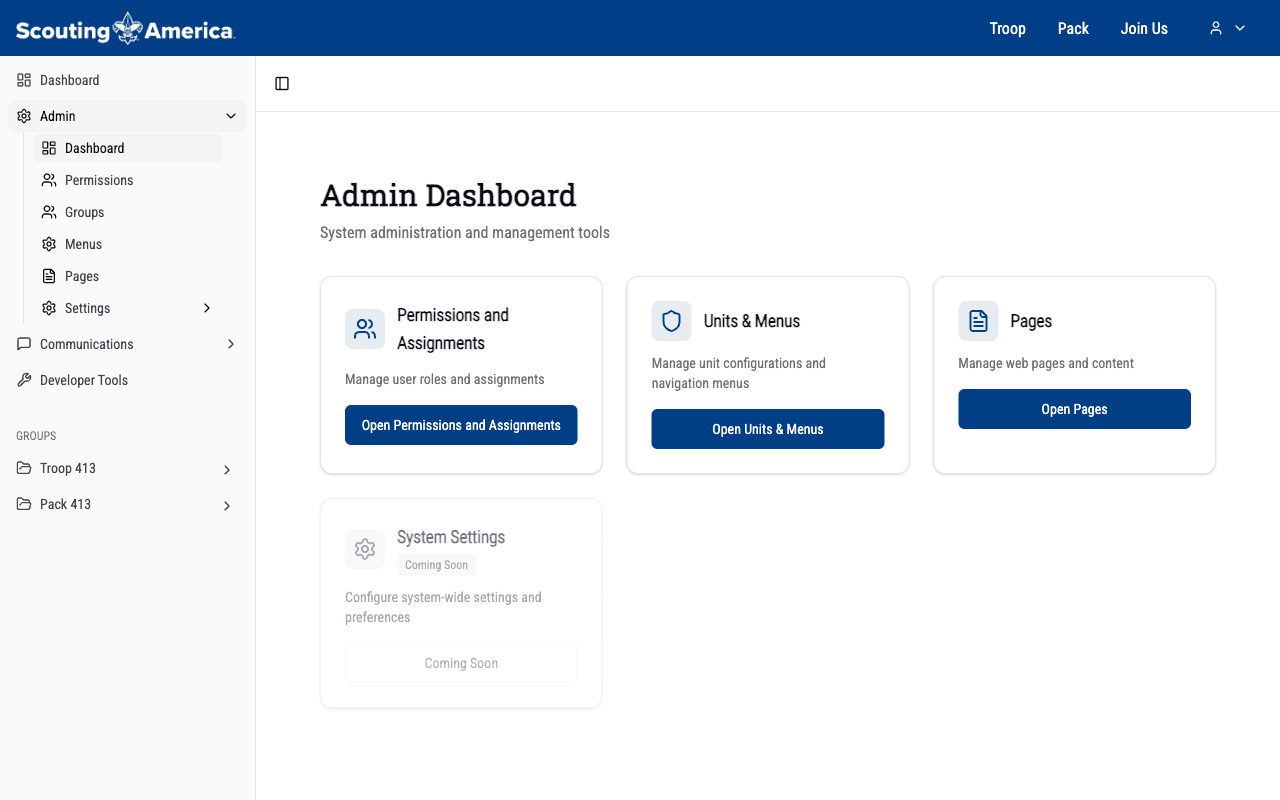
Admin Hub Overview
The admin dashboard home is an overview of your organization. Under the header (your organization's name, its group and member counts, and Invite user / New message buttons) it shows:
-
Needs attention -- the things waiting on you, most urgent first:
- scheduled messages that failed to send, each opening the message;
- emails or texts that couldn't be delivered, and any time sending was blocked, in the last 7 days -- these open the failed jobs on the Delivery Status tab of Logs;
- join requests that have been waiting a week or more, with how long the oldest has waited. Newer requests are the group admins' to handle and show in the Groups table instead. If your organization has only one or two groups, every pending request is listed here.
It says All caught up only when everything loaded and nothing is waiting; if something couldn't be loaded, it says so with a Retry button.
-
Recent activity -- the latest entries from the audit log: what happened, to what, who did it and when, with a link to all logs.
-
Messages and Upcoming events -- drafts, scheduled and recently sent messages, and the number of events in the next 30 days with the next one (which opens that group's calendar on its day).
-
Groups -- one row per group, with subgroups indented under their parent: its member count, whether it has a group admin (None is highlighted, since no one can approve its join requests), pending join requests and how long the oldest has waited, when it last sent a message, and its next event. Each value links to that part of the group.
The admin areas below are reached from the Admin section of the sidebar:
Pages
Found at /dashboard/admin/pages, this is where you create, edit, and manage all the pages on your website. Each page uses a template that determines its layout and the fields you fill in. See Managing Pages for details.
Menus
Found at /dashboard/admin/menus, this is where you create and manage navigation menus. Menus are collections of links that can be used for the top navigation bar or as sidebar navigation on individual pages. See Menus and Navigation for details.
Groups
Found at /dashboard/admin/groups, this is where you manage your organization's groups. See Users, Roles, and Groups for creating groups and sub-groups, sharing join links, and approving join requests.
Logs
Found at /dashboard/admin/logs, this page has two tabs: Audit Logs, a history of recorded actions taken across your organization, and Delivery Status, which shows how your organization's emails and texts are being delivered. See Audit Logs and Delivery Status.
Settings
Site-wide settings are found under /dashboard/admin/settings/:
- Branding (
/dashboard/admin/settings/branding/) -- Logo, primary color, site description, contact email, and footer content. - Navigation (
/dashboard/admin/settings/navigation/) -- Choose which menu drives the top navigation bar and which menu drives the site footer. - Calendar (
/dashboard/admin/settings/calendar/) -- Your organization's timezone, the tags people can put on events, and each group's calendar color. See Managing Calendar Events. - Import/Export (
/dashboard/admin/settings/import-export/) -- Copy your organization's content to a file, or bring content in from one. See Importing and Exporting Data.
Users & Roles
Found at /dashboard/admin/users, this is where you manage user roles and access for your organization. See Users, Roles, and Groups for what each role can do and how to invite people.
Group Dashboards
Group-scoped views live under /dashboard/[group]/… -- for example, a group's messages or calendar -- for managing a single group.
Next Steps
- Users, Roles, and Groups -- Understand roles, invite people, and set up groups.
- Managing Pages -- Learn how to create and edit pages.
- Page Templates -- Understand the available templates and when to use each one.
- Menus and Navigation -- Set up navigation for your site.
- Branding and Site Settings -- Customize your site's appearance.